Templates – Whatsbot Module
Overview
The Templates feature in the Whatsbot module is designed for businesses to send pre-approved promotional or informational messages to multiple contacts via WhatsApp Business. These templates are essential for broadcasting messages such as promotions, product announcements, special deals, and customer notifications while maintaining compliance with Meta’s WhatsApp Business policies.
However, you will notice that within the Whatsbot Templates page, there are no options to directly add or create templates. This is an intentional design—all templates must first be created and approved in Meta’s Business Suite before they can be used in Whatsbot.
Why You Cannot Add Templates in Whatsbot
WhatsApp Business requires that all message templates go through Meta’s approval process to ensure they meet content standards and prevent spam or misuse.
Because of this, Whatsbot does not allow users to create templates directly within the system. Instead, all templates must be created and approved within Meta Business Suite, then automatically synchronized into Whatsbot.
Requirements
Before using Whatsbot templates, ensure that:
1. You have a Meta Business Account with access to Meta Business Suite.
2. Your WhatsApp Business API number is connected to your Meta account.
3. You have the necessary permissions to create and manage message templates in Meta.
Steps to Create Templates in Meta Business Suite
Follow these steps to create templates in Meta before using them in Whatsbot:
1. Login to Meta Business Suite
– Go to Meta Business Suite.
– Sign in with the account linked to your WhatsApp Business number.
2. Access WhatsApp Manager
– From the left sidebar, click “More Tools” → “WhatsApp Manager”.
3. Open Message Templates
– In WhatsApp Manager, navigate to the “Message Templates” section.
4. Create a New Template
– Click “Create Template”.
– Fill in the required fields:
| Field | Description |
|---|---|
| Template Name | Choose a unique name for the template. |
| Category | Select the purpose of the template (e.g., Marketing, Transactional, Utility). |
| Language | Choose the language for your template. |
| Message Body | Enter the message content. You can include placeholders like {{1}} for dynamic content (e.g., customer name, order number). |
| Buttons (Optional) | Add Call-to-Action or Quick Reply buttons. |
5. Submit for Approval
– Click Submit.
– Meta will review your template. Once approved, it will be available for use through Whatsbot.
Syncing Templates to Whatsbot
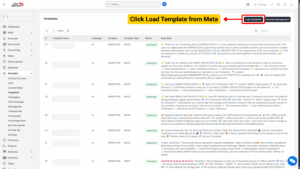
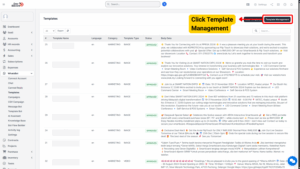
Once your template is approved in Meta:
– It will automatically appear under the Templates section in the Whatsbot module.
– You can then select and use these templates for your broadcast messages, sales campaigns, or promotions.
Note: Synchronization may take a few minutes after approval. If the template doesn’t appear, try refreshing the page or reloading the Whatsbot module.