Knowledge Base – Whatsbot Module
Overview
The Knowledge Base feature in the Whatsbot module allows you to enhance your AI assistant’s intelligence by providing it with comprehensive company-related information. By uploading documents, adding web URLs, or importing multiple sources in bulk, you can teach the AI about your company’s products, services, policies, and more — helping it deliver more accurate, context-aware, and professional responses during WhatsApp interactions.
This feature is essential for ensuring that your AI can respond with up-to-date and detailed information, improving the quality of automated customer support and engagement.
Purpose
The Whatsbot Knowledge Base enables your AI to:
– Access company-specific content such as brochures, FAQs, or manuals.
– Understand your products, services, pricing, and policies in depth.
– Generate more accurate and informed responses during customer conversations.
– Reduce human intervention by providing AI with verified company knowledge sources.
Accessing the Knowledge Base
1. From the system dashboard, navigate to the sidebar menu.
2. Click Whatsbot → Knowledge Base.
3. You will be directed to the Knowledge Base Management page, where you can upload files, add URLs, and monitor processing progress.
Adding Knowledge Base Content
There are three main ways to add data to your AI’s knowledge base:
1. Upload Files
2. Add URL (Single Web Page)
3. Batch Import (Multiple URLs)
Each method is explained in detail below.
Upload Files
The Upload File feature allows you to upload documents containing important information about your organization. The AI will process these files and extract relevant knowledge for use during WhatsApp interactions.
Steps to Upload a File
1. On the Knowledge Base page, click the “Upload File” button.
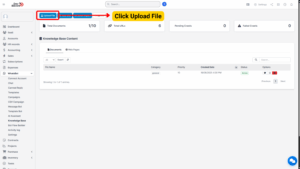
2. Fill in the required details:
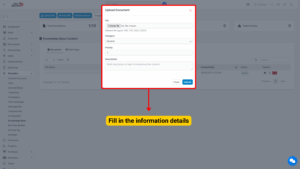
Fields Description
| Field | Description |
|---|---|
| File | Upload a file that contains your company’s information. 📎 Allowed file types: PDF, TXT, DOC, DOCX |
| Category | Choose a suitable category for the content to help organize knowledge: • General • Product • Support • Pricing • Legal |
| Priority | Assign a processing or relevance priority. Higher priority files are processed or used first by the AI. |
| Description | Provide a short summary of the file’s content (e.g., “Product manual for 2025 models” or “Terms of service policy”). |
3. After completing the fields, click Save to upload the file.
4. The file will appear in the processing list under the Progress tab.
Tip
Upload clear and concise documents to ensure the AI extracts meaningful information efficiently.

Add URL (Web Page Source)
The Add URL option allows you to provide web links that contain relevant company content. The AI will crawl and index the page to learn from it.
Steps to Add a URL
1. Click “Add URL” on the Knowledge Base page.
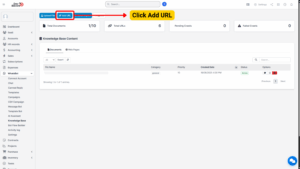
2. Fill in the required information:
Fields Description
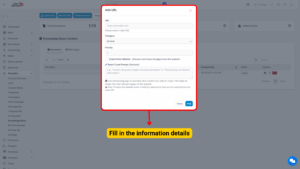
| Field | Description |
|---|---|
| URL | Enter a valid web address (e.g., https://www.companywebsite.com/products). |
| Category | Select the most relevant category for this URL: • General • Product • Support • Pricing • Legal |
| Priority | Define the importance of this source (e.g., 1 = Low, 5 = High). |
| Crawl Entire Website | Enable or disable full-site crawling. If enabled, the AI will discover and index all pages within the domain. |
| Smart Crawl Prompt (Optional) | Use natural language to describe what type of content the AI should extract. |
3. Once all fields are completed, click Save.
4. The system will queue the URL for processing.
Tip
Use “Smart Crawl Prompt” for large websites to ensure the AI only processes the most relevant content.
Batch Import (Multiple URLs)
If you have multiple URLs to upload, use the Batch Import option. This allows you to import several web pages at once under a single category and priority level.
Steps to Use Batch Import
1. Click “Batch Import” on the Knowledge Base page.
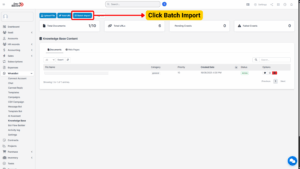
2. Fill in the fields as follows:
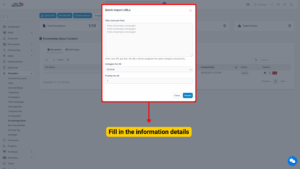
Fields Description
| Field | Description |
|---|---|
| URLs | Enter one URL per line. Each line should contain a complete and valid link. |
| Category for All | Assign a category that applies to all URLs being imported (General, Product, Support, Pricing, or Legal). |
| Priority for All | Set a uniform priority level for all imported URLs. |
3. Click Save to begin the batch import.
4. All URLs will appear in the Progress section, where you can track their status.
Note
Use batch import when adding multiple support articles, blog pages, or FAQ links.

Tracking Knowledge Base Processing Progress
After uploading files or adding URLs, the system needs to process the data before it becomes available for AI usage. You can monitor the processing status using the Progress section.
To View Progress:
1. Click the “Progress” tab at the top of the Knowledge Base page.
2. You will see the Knowledge Base Processing Progress Dashboard, which displays the following status categories:
| Status | Description |
|---|---|
| Pending | The resource has been added but not yet processed. |
| Processing | The resource is currently being indexed or crawled. |
| Completed | Processing is done, and the data is ready for AI use. |
| Failed | An error occurred during processing (e.g., invalid format or inaccessible URL). |
| Cancelled | The process was manually stopped. |
| Total | The total number of resources uploaded or imported. |
3. To start processing pending documents manually, click the “Process Jobs” button.
This action triggers the system to begin indexing and analyzing the uploaded files or URLs.