Whatsbot Module – WebHooks Settings
Overview
The WebHooks Settings section in the Whatsbot module allows administrators to configure how WhatsApp data is automatically re-sent to external systems or third-party applications through webhooks.
This feature is particularly useful for integrating Whatsbot with other platforms such as CRM systems, analytics tools, or automation workflows, ensuring that message data is synchronized in real time.
Before setting up this section, ensure that your Whatsbot integration is properly connected and authenticated with your WhatsApp account.
Accessing Whatsbot WebHooks Settings
1. From the Dashboard, click “Whatsbot” on the sidebar menu.
2. Select “Settings” to open the configuration page.
3. You will see seven (7) sections within the Whatsbot settings.
4. Click on the “WebHooks” section to configure webhook options.
Understanding WebHooks
A webhook is a mechanism that allows Whatsbot to automatically send data to another server or system whenever an event occurs—such as receiving a new WhatsApp message. Instead of manually exporting or polling data, webhooks deliver the information instantly to the configured endpoint URL.
For example, when a message is received in WhatsApp, Whatsbot can send that message data (such as sender, timestamp, and content) to your external CRM or database via a webhook.
WebHooks Settings Configuration
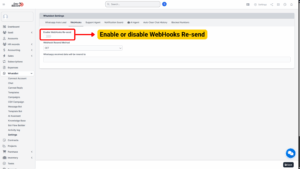
1. Enable or Disable WebHooks Re-send
| Field | Details |
|---|---|
| Option | WebHooks Re-send |
| Description | Determines if the system will automatically resend WhatsApp data through configured webhooks. |
| Usage | Enable: Turn the switch ON to allow automatic resending of WhatsApp data to the webhook endpoint.
Disable: Turn the switch OFF to stop forwarding or resending data via webhooks. |
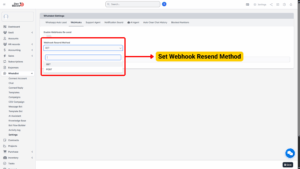
2. WebHooks Re-send Method
| Field | Details |
|---|---|
| Field Name | Resend Method |
| Purpose | Defines how Whatsbot sends data to the external webhook endpoint. |
| Available Methods | GET: Sends data as URL parameters (e.g., appended to the endpoint URL).
POST: Sends data in the request body in JSON format, which is more secure and flexible. |
3. WhatsApp Received Data Will Be Re-sent To (Optional)
| Field | Details |
|---|---|
| Field Name | Webhook Destination URL |
| Purpose | Specifies the endpoint URL where Whatsbot will resend WhatsApp message data. |
| Details | Enter the full URL of your webhook receiver (e.g., a CRM API endpoint, a custom application, or a database integration script).
This field is optional — if left blank, no data will be sent even if the WebHooks Re-send option is enabled. |
| Example | https://crm.yourcompany.com/api/whatsapphttps://automation-platform.com/webhook-receiver |
Tip
Ensure the endpoint URL is accessible and correctly configured to receive requests using the chosen method (GET or POST).

Saving and Applying Changes
After configuring your webhook settings:
1. Review your chosen options carefully.
2. Click “Save” at the bottom of the page.
3. Whatsbot will immediately apply the new configuration.
If enabled, Whatsbot will now resend WhatsApp message data to the specified URL using the selected HTTP method.