Whatsbot Module – AI Agent Settings
Overview
The AI Agent Settings section in the Whatsbot module enables administrators to configure and control AI-powered features that enhance WhatsApp interactions.
This functionality allows Whatsbot to automatically assist users with intelligent message generation, real-time translations, and knowledge base responses — streamlining communication and improving customer service efficiency.
By enabling the AI Agent, your WhatsApp system becomes more interactive and capable of handling automated responses with natural, human-like understanding.
Accessing Whatsbot AI Agent Settings
1. From the Dashboard, click “Whatsbot” on the sidebar menu.
2. Select “Settings” to open the Whatsbot configuration panel.
3. You will see seven (7) sections in the settings interface.
4. Click on the “AI Agent” section to open the configuration options.
AI Agent Settings Configuration
1. Enable or Disable AI Features
Here’s the information formatted neatly in a vertical table:
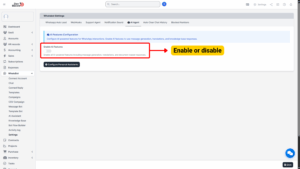
| Field | Details |
|---|---|
| Option | Enable AI Features |
| Description | Controls whether Whatsbot uses its built-in Artificial Intelligence (AI) capabilities during WhatsApp conversations. When enabled, the system activates all AI-driven tools and responses, including message generation, translations, and knowledge base interactions. |
| Usage | Enable: Turn the toggle ON to activate AI-powered functionalities for WhatsApp chats.
Disable: Turn the toggle OFF to restrict Whatsbot to standard, manual messaging only. |
Tip
Enabling AI features helps automate responses, improving response times and customer satisfaction—especially useful for handling frequent inquiries or providing multilingual support.

2. AI Features Configuration
Once AI is enabled, Whatsbot unlocks advanced AI-powered tools designed to enhance communication and workflow efficiency. Below are the available features:
a. Message Generation
Description:
Automatically generates smart and context-aware responses for WhatsApp conversations.
The AI analyzes the received message and suggests or sends relevant replies, reducing manual typing and ensuring quick responses.
Example:
Customer: “Can I know your business hours?”
AI Response: “Our business hours are from 9 AM to 6 PM, Monday through Friday.”
b. Translations
Description:
Enables real-time translation for WhatsApp messages.
The AI can translate both incoming and outgoing messages into the preferred language, enabling smooth communication with customers who speak different languages.
Example:
– A message received in Spanish can be automatically translated into English for the agent.
– The agent’s reply in English can then be translated back into Spanish before being sent.
c. Knowledge Base Responses
Description:
The AI uses your organization’s knowledge base to generate accurate, context-specific responses to user queries.
When customers ask questions related to products, services, or policies, the AI retrieves and delivers relevant information automatically.
Example:
Customer: “What is your return policy?”
AI Response: “You can return any item within 30 days of purchase with a valid receipt.”
d. Document-Based Responses
Description:
The AI can reference and use data from uploaded or connected documents to generate accurate, informative replies.
This ensures consistency in responses, especially when information is stored in manuals, guidelines, or company policy documents.
Example:
Customer: “Can you share the installation process for Product A?”
AI searches the setup manual and replies with the correct steps.
Saving and Applying Changes
After configuring the AI Agent settings:
1. Review all options to ensure accuracy.
2. Click “Save Changes” or “Update Settings” at the bottom of the page.
3. The AI-powered features will be activated immediately upon saving.
Once enabled, Whatsbot will start processing and enhancing WhatsApp interactions using the selected AI functionalities.