Whatsbot Module – Chat Management
Overview
The Chat section in the Whatsbot module serves as the central hub for managing all incoming and outgoing WhatsApp communications connected to your company’s registered WhatsApp Business number.
This interface provides real-time access to every conversation initiated through WhatsApp, allowing your support agents or sales teams to efficiently handle customer inquiries, manage ongoing chats, and maintain communication history — all within one unified system.
The chat dashboard is designed for speed, visibility, and collaboration, ensuring that messages are easily searchable, filterable, and assignable to the right team members.
Accessing the Chat Section
1. From the Dashboard, click “Whatsbot” on the sidebar menu.
2. Select “Chat” from the submenu.
3. You will be directed to the Whatsbot Chat Interface, where all company WhatsApp messages are displayed and managed.
Chat Interface Overview
Once you open the Chat page, you will see a structured view containing all WhatsApp conversations received through the registered business number(s).
Main Components of the Chat Interface:
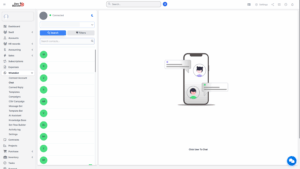
| Feature | Description |
|---|---|
| Chat List Panel | Displays all chats associated with your company number. |
| Chat Search Bar | Allows quick searching for contacts or conversations. |
| Filter Options | Enables filtering by relation type or assigned agent. |
| Chat Window | Displays the selected conversation with message history. |
| Reply and Action Tools | Used for sending messages, attachments, or managing lead assignments. |
Key Features
1. Chat Listing
All WhatsApp messages sent to your registered company number(s) will automatically appear in this section.
Each chat entry typically displays:
| Field | Description |
|---|---|
| Contact Name or Phone Number | Displays the name or phone number of the contact. |
| Last Message Preview | Shows a preview of the most recent message in the conversation. |
| Timestamp of Last Interaction | Indicates the date and time of the last message exchanged. |
| Assigned Agent | Displays the agent assigned to the chat, if applicable. |
| Unread Message Count | Shows the number of unread messages, if any. |
Note
New chats will be received and displayed in real-time, ensuring that your team can respond instantly as messages arrive.

2. Search Contacts
The Search Contacts feature allows users to quickly locate specific chats or customers.
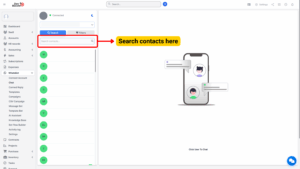
How to Use:
– Type the contact name, WhatsApp number, or keyword into the search bar.
– The system will filter and display all relevant chats that match the search query.
– This helps agents easily find ongoing or previous conversations without manually scrolling through the entire chat list.
Tip
Use partial names or numbers for broader search results when unsure of the exact contact details.

3. Filter Chats
The Filter function enhances chat management by allowing you to organize conversations based on specific criteria.
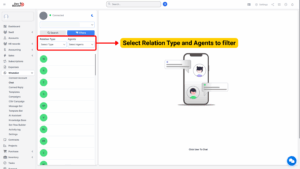
You can filter chats by:
– Relation Type
– Assigned Agent
a. Filter by Relation Type
Relation type categorizes the contact or lead based on its business relationship with your company.
Common relation types may include:
| Lead Type | Description |
|---|---|
| New Lead | Recent contact or first-time customer. |
| Partner | Business or collaboration partner. |
| Event Attendee | Contact obtained from event participation. |
| Customer | Existing client or active customer. |
Selecting a specific relation type will filter and display only the chats that match that category.
b. Filter by Agent
This filter helps administrators and team leaders monitor the chat responsibilities of each staff member.
Select a specific agent’s name to view only the chats assigned to that agent.
This feature is particularly useful for tracking performance, managing workloads, or assisting in agent handovers.
Managing Chats
Within each chat, users can:
– Send and receive messages in real time.
– Use emojis, media attachments, and quick replies.
– View the complete message history for context.
– Tag or assign a chat to another support agent.
– Convert a conversation into a lead (if Auto Lead is disabled, this can be done manually).
The system ensures that all messages remain synchronized with your WhatsApp Business API integration, maintaining communication consistency across devices and agents.