Whatsbot Module – Blocked Numbers Settings
Overview
The Blocked Numbers section in the Whatsbot module provides administrators with control over which numbers can communicate with their WhatsApp Business account.
This feature is essential for maintaining system security, preventing spam, and ensuring that only legitimate users can interact with your WhatsApp bot or business account. Administrators can block either specific phone numbers or entire countries, depending on the organization’s communication policies or security needs.
All blocking actions are handled locally within the system, ensuring that unwanted messages are filtered before they reach your WhatsApp Business interface.
Accessing the Blocked Numbers Settings
1. From the Dashboard, click “Whatsbot” on the sidebar menu.
2. Select “Settings” from the submenu.
3. You will see seven (7) configuration sections in the Whatsbot settings.
4. Click on the “Blocked Numbers” section to open the WhatsApp Number Blocking configuration page.
Understanding WhatsApp Number Blocking
The WhatsApp Number Blocking feature allows you to:
– Block individual numbers that are known sources of spam or abuse.
– Block entire countries to prevent messages from users in certain regions.
– Manage your blocked list efficiently through an organized interface.
Once a number or country is blocked:
– The blocked user(s) will not be able to send messages to your WhatsApp Business account.
– The system will automatically reject any incoming messages from blocked numbers before they are processed or stored.
⚙️ Important Note: Blocking is handled locally by the Whatsbot system. This means the numbers are not blocked directly through WhatsApp, but instead through the Whatsbot middleware that filters incoming communication.
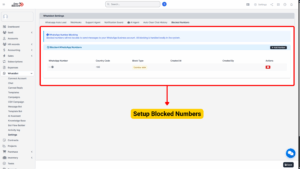
Adding a New Blocked Number or Country
Step 1: Click + Add Number
To add a new blocked number or country:
1. Click the “+ Add Number” button in the Blocked Numbers section.
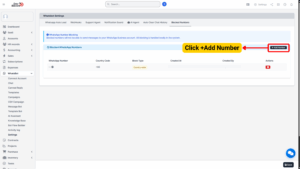
2. A form will appear, allowing you to specify the details of the block rule.
Step 2: Select the Block Type
The first step in the form is to choose the Block Type.
Available Options:
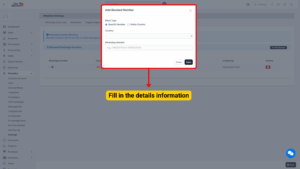
| Block Type | Description |
|---|---|
| Specific Number | Block one particular phone number. |
| Entire Country | Block all phone numbers from a specific country code. |
Tip
– Use Specific Number blocking for targeted spam or harassment prevention.
– Use Entire Country blocking for region-based restrictions or compliance with internal communication policies.

Step 3: Configure Based on the Selected Block Type
A. If You Choose “Specific Number”
When you select Specific Number, you will need to fill in:
| Field Name | Description |
|---|---|
| Country | Select the country from the dropdown list to ensure the correct international code is used. |
| WhatsApp Number | Enter the full WhatsApp number (without including the country code prefix). |
Once configured, the system will block messages from that exact number only.
Note
Ensure the number is accurate. Blocking the wrong number may prevent legitimate users from contacting your account.

B. If You Choose “Entire Country”
When you select Entire Country, you will only need to specify:
Country – Choose the country you want to block entirely.
After saving, all numbers from that country code will be automatically blocked from sending messages to your WhatsApp Business account.
Step 4: Save Your Changes
After completing the configuration:
1. Review your selected options carefully.
2. Click “Save” or “Add” to confirm and apply the block.
3. The new blocked number or country will now appear in your Blocked Numbers List.
Managing the Blocked Numbers List
Once entries are added, you can manage them directly from the Blocked Numbers interface.
Available Actions:
| Action | Description |
|---|---|
| View | See a list of all blocked numbers and countries. |
| Edit | Modify existing blocking rules, such as updating a country or phone number. |
| Delete | Remove a blocked entry to allow communication again. |
Each entry includes:
– Block Type (Specific Number / Entire Country)
– Country (if applicable)
– WhatsApp Number (if applicable)
– Date Added
– Status
Note
Once a number or country is deleted from the list, it can immediately resume sending messages to your WhatsApp Business account.