Whatsbot Module – Auto Clear Chat History Settings
Overview
The Auto Clear Chat History section in the Whatsbot module helps administrators manage data storage efficiently by automatically clearing old chat histories and cached error responses.
This feature ensures that the system remains optimized, responsive, and free of unnecessary data buildup. By configuring this setting, you can define how long chat records are retained and how frequently cached error responses are cleaned.
A properly configured cron job is required for these features to function correctly, as it handles the automated cleanup process.
Accessing Whatsbot Auto Clear Chat History Settings
1. From the Dashboard, click “Whatsbot” on the sidebar menu.
2. Select “Settings” to open the configuration page.
3. You will see seven (7) sections available under the Whatsbot settings.
4. Click on the “Auto Clear Chat History” section to open its configuration options.
Auto Clear Chat History Configuration
1. Enable or Disable Auto Clear Chat History
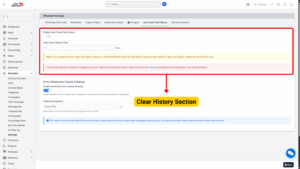
| Field | Details |
|---|---|
| Option | Enable Auto Clear Chat History |
| Description | Allows the system to automatically delete old chat records from Whatsbot after a specified number of days. When enabled, the system will periodically remove chat histories that exceed the set retention period. This helps maintain optimal database performance and ensures that only recent, relevant chats are kept. |
| Usage | Enable: Turn the toggle ON to activate automatic chat history cleanup.
Disable: Turn the toggle OFF to manage chat records manually. |
💡 Tip: Enabling this feature is highly recommended for systems handling large volumes of chat data to prevent database overload and maintain smooth system performance.
2. Set Auto Clear History Time (Days)
| Field | Details |
|---|---|
| Field Name | Auto Clear History Time (Days) |
| Description | Determines the retention period for chat records before they are automatically deleted. You must specify the number of days Whatsbot should retain chat history before clearing it during cron job execution. |
| Example | 30 days: Any chat older than 30 days will be deleted when the cron job runs.
7 days: The system will keep only one week’s worth of chat history. |
3. Cron Job Requirement
Note:
The Auto Clear Chat History feature relies on a cron job—an automated background task that runs scheduled operations at defined intervals.
This ensures that chat cleanup occurs regularly without manual action.
Important Reminder:
Before enabling this feature, ensure that your cron job is properly configured as described in the official documentation.
If the cron job is not running correctly, chat histories will not be cleared automatically, even if the setting is enabled.
Error Response Cache Cleanup Configuration
After configuring chat history settings, you can also manage how the system handles cached error responses.
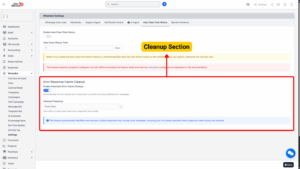
4. Enable or Disable Automatic Error Cache Cleanup
| Field | Details |
|---|---|
| Option | Enable Automatic Error Cache Cleanup |
| Description | Allows Whatsbot to automatically identify and remove cached responses that contain error messages. When enabled, the system periodically clears outdated or invalid cached error data to ensure users always receive updated and accurate responses once the issue is resolved. |
| Usage | Enable: Turn the toggle ON to automatically remove cached error responses.
Disable: Turn the toggle OFF to manage cache cleanup manually. |
Tip
Enabling this feature prevents the bot from repeatedly serving outdated or incorrect error messages to users.

5. Set Cleanup Frequency
| Field | Details |
|---|---|
| Field Name | Cleanup Frequency |
| Description | Defines how often the system checks for and removes cached error responses. You can specify the interval (e.g., every few hours or days) depending on your system’s needs and message traffic volume. |
| Example | 1 day: Clears cached errors daily. 6 hours: Performs more frequent cleanup for high-traffic systems. |
Saving and Applying Changes
After configuring the Auto Clear Chat History and Error Cache Cleanup settings:
1. Review all your selections carefully.
2. Click “Save” at the bottom of the page.
3. The system will apply the new configurations immediately.