Campaigns – Whatsbot Module
Overview
The Campaigns feature in the Whatsbot module enables users to send bulk WhatsApp messages for marketing, announcements, promotions, and customer engagement. This feature allows you to automate outreach using approved message templates, ensuring communication is both efficient and compliant with WhatsApp Business policies.
Campaigns can be sent immediately or scheduled for a later time, allowing businesses to plan and execute targeted marketing strategies effectively.
Accessing Campaigns
1. From the main Dashboard, navigate to the sidebar menu.
2. Click Whatsbot → Campaigns.
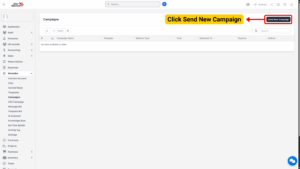
3. The Campaigns page displays a list of all created campaigns along with their details such as name, status, and scheduled time.
To create a new campaign, click the “Send New Campaign” button at the top right corner of the page.
Creating a New Campaign
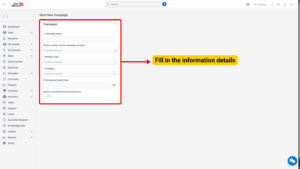
When you click Send New Campaign, a form will appear. You’ll need to fill in the required information as described below:
| Field | Description |
|---|---|
| Campaign Name | Enter a clear and descriptive name for your campaign. This name helps you identify the purpose of the campaign (e.g., New Year Promotion 2025, Product Launch Notification, Customer Re-engagement Drive). |
| Phone Number | Select the WhatsApp Business number that will be used to send out the campaign messages. 💡 If your company has multiple WhatsApp numbers registered, choose the one associated with the intended audience or region. |
| Relation Type | Select the Relation Type for the campaign.
You can choose between: Leads – for potential customers or unconverted prospects. This classification helps target the right audience for each message type and ensures effective communication management. |
| Template | Choose the approved WhatsApp message template to use for your campaign. Only templates that have been created and approved in Meta Business Suite will appear in this list. |
5. Scheduled Send Time
Specify the date and time when you want the campaign to be sent.
This feature allows you to plan your campaigns in advance — ideal for product launches, event reminders, or limited-time offers.
– Use the calendar and time picker to select your preferred schedule.
– Ensure the time zone settings align with your target audience’s region.
6. Ignore Scheduled Time and Send Now
Toggle this option ON if you want to send the campaign immediately, ignoring the scheduled time.
This is useful for urgent announcements or last-minute updates.