Whatsbot Module – Canned Reply Management
Overview
The Canned Reply feature in the Whatsbot module allows users to create, manage, and apply pre-defined message templates for WhatsApp conversations.
Canned replies help agents respond quickly and consistently to frequently asked questions, saving time and maintaining professionalism during customer interactions. By using this feature, organizations can ensure uniform communication across their support, sales, and marketing teams.
This documentation outlines how to create, manage, and use canned replies effectively within the Whatsbot system.
Accessing the Canned Reply Section
1. From the Dashboard, click “Whatsbot” on the sidebar menu.
2. Select “Canned Reply” from the submenu.
3. You will be directed to the Canned Reply Management Page, where you can view, create, edit, or delete canned replies.
Creating a New Canned Reply
Step 1: Click “Create Canned Reply”
– Click the “Create Canned Reply” button to open the creation form.
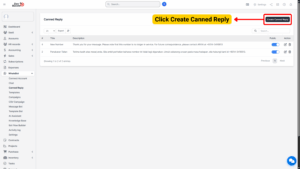
– This will open a simple input form where you can define your message template.
Step 2: Fill in the Information
You are required to complete the following fields:
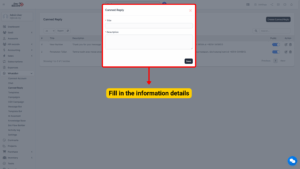
| Field | Description | Example |
|---|---|---|
| Title | A short, descriptive label for your canned reply. This helps you identify it quickly. | “Welcome Message” |
| Description | The actual message text that will be inserted into the chat when selected. | “Hello! 👋 Thank you for contacting us. How can we assist you today?” |
Tip
Keep the title short and clear so that agents can easily recognize it from the list. The description can include text, emojis, and placeholders for personalization.

Step 3: Click “Save”
– Once all information is entered, click the “Save” button.
– The new canned reply will now appear in your Canned Reply List, ready to use in future chats.
Managing Canned Replies
Once a canned reply is created, you can manage it directly from the list view.
Available Actions:
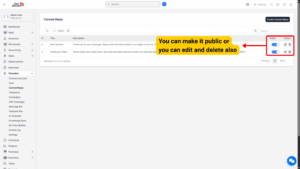
| Action | Description |
|---|---|
| Make Public | Allows a canned reply to be accessible to all users and agents in the system. Useful for company-wide standard responses or policy-related messages. |
| Edit Canned Reply | Modify an existing canned reply by clicking the Edit icon. Update the title or content as needed, then click Save to apply changes. |
| Delete Canned Reply | Remove an outdated or unnecessary reply by clicking the Delete icon. Confirm the deletion when prompted. Deleted replies cannot be recovered. |
Note
Only authorized users (depending on system roles) may have permission to edit or delete canned replies shared with other agents.

Applying a Canned Reply in Chat
Canned replies can be used directly in your WhatsApp chats to speed up communication.
Step 1: Open the Chat
– Go to the Chat section under Whatsbot.
– Select the conversation where you want to use a canned reply.
Step 2: Click the Canned Reply Icon
– In the chat message box, click the Canned Reply icon (usually represented by a chat bubble or quick message symbol).
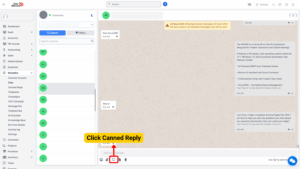
– A list of all available canned replies will appear, including your own and any public ones.
Step 3: Choose the Desired Canned Reply
– Click on the canned reply you want to use.
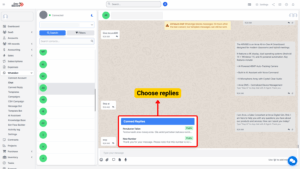
– The message content will automatically appear in the chat box.
Step 4: Edit or Send the Message
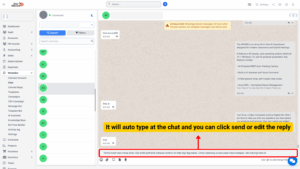
You can send the message immediately by clicking the Send button, or add additional text in the chat box before sending it to personalize your response.