Template Bot – Whatsbot Module
Overview
The Template Bot feature in the Whatsbot module allows users to automate WhatsApp replies using pre-approved message templates from Meta Business Suite. Unlike the regular Message Bot, which uses custom text, the Template Bot ensures that your automated messages comply with WhatsApp Business policies and deliver a professional, consistent communication experience.
This feature is especially useful for sending structured replies such as promotional messages, order updates, confirmations, or personalized follow-ups — all triggered automatically based on keywords or message types.
Accessing the Template Bot
1. From the Dashboard, navigate to the sidebar menu.
2. Click Whatsbot → Template Bot.
3. You will be directed to the Template Bot Management page, where you can view, create, edit, or delete your template-based bots.
Creating a New Template Bot
To create a new template-based automation:
1. Click the “Create Template Bot” button.
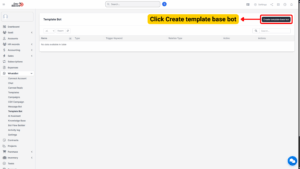
2. A configuration form will appear, allowing you to define the bot’s name, audience, template, and trigger behavior.
Fill in Basic Information
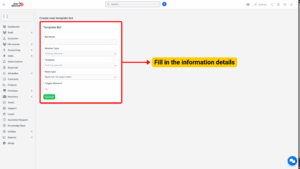
1. Bot Name
Enter a unique and descriptive name for the bot.
This helps you identify its purpose easily, especially if you manage multiple bots.
Tip
Use clear, functional names to quickly identify the bot’s role.

2. Relation Type
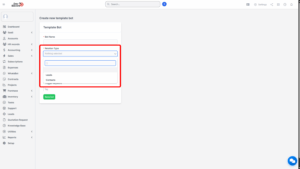
Select who the bot will interact with:
Leads – New prospects or potential customers who have not been converted.
Contacts – Existing clients or recurring customers.
This ensures that messages are properly targeted to the right user category.
Configure the Message Template
3. Template
Choose the approved WhatsApp message template that will be used by this bot.
Only templates created and approved through Meta Business Suite will appear in the list.
Each template usually includes:
– A Header (optional – can contain text or media),
– The Body Message (main message content),
– A Footer (optional short text), and
– Buttons (optional interactive elements such as quick replies or call-to-action links).
Tip
You must have Meta-approved templates before you can create a Template Bot.
Define Reply Behavior
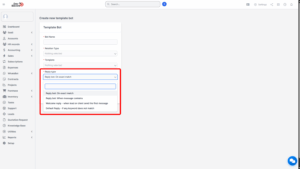
4. Reply Type
Select the behavior that determines when the bot should respond. There are four available types:
| Reply Type | Description |
|---|---|
| Reply bot: On exact match | The bot replies only when the message exactly matches the trigger keyword. |
| Reply bot: When message contains | The bot replies when the message includes the trigger keyword, even as part of a longer message. |
| Welcome reply | Sends the selected template when a lead or contact sends their first message. |
| Default reply | Sends the selected template when no keywords match any other bot configuration. |
Set the Trigger Keyword
5. Trigger Keyword
Enter the keyword or phrase that will activate this bot.
This keyword acts as the condition that triggers the chosen message template.
Note
Use short and meaningful keywords. Avoid duplicates across multiple bots to prevent conflicting responses.

Save and Activate the Bot
Once all fields are filled:
1. Review your configuration carefully.
2. Click Save or Create Template Bot.
3. Your bot will appear in the Template Bot List, ready to respond automatically according to the defined triggers.