Whatsbot Module – Support Agent Settings
Overview
The Support Agent Settings section in the Whatsbot module allows administrators to manage chat assignment permissions and control how WhatsApp conversations are handled by support agents.
This setting ensures that only authorized personnel—designated as support agents—can manage customer chats, while also allowing administrators to control chat reassignment for efficient workflow management.
Before configuring this section, make sure your Whatsbot system and user roles (Admin, Support Agent, etc.) are properly defined.
Accessing Whatsbot Support Agent Settings
1. From the Dashboard, click “Whatsbot” in the sidebar menu.
2. Select “Settings” to open the Whatsbot configuration page.
3. You will see seven (7) settings sections available.
4. Click on the “Support Agent” section to configure agent-specific chat permissions.
Support Agent Settings Configuration
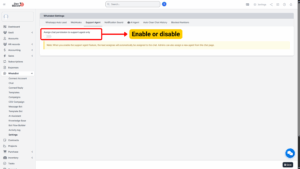
1. Assign Chat Permission to Support Agent Only
| Field | Details |
|---|---|
| Option | Enable or Disable “Assign Chat Permission to Support Agent Only” |
| Description | Determines whether only users with the Support Agent role are permitted to handle and manage incoming WhatsApp chats. |
| Usage | Enable: Turn the option ON to allow only Support Agents to manage WhatsApp chats.
Disable: Turn the option OFF to allow all authorized users (including admins and general staff) to manage chats. |
Tip
Enable this setting to ensure that all customer communications are handled by trained support agents, maintaining professionalism and consistent response quality.

2. Automatic Chat Assignment to Lead Assignee
Description:
When the Support Agent feature is enabled, the Whatsbot system will automatically assign incoming chats to the Lead Assignee.
This means that when a new lead is created—either manually or automatically (e.g., through the WhatsApp Auto Lead feature)—the staff member assigned to that lead will automatically become the primary handler of any related WhatsApp conversations.
Example:
If Lead A is assigned to Staff Member “John,” and that lead initiates a WhatsApp chat, the chat will automatically be routed and assigned to John as the support agent.
Benefit:
This automation ensures that the person responsible for the lead is also the one handling the communication, reducing confusion and improving follow-up efficiency.
3. Admin Reassignment Privilege
Description:
Even when chat permissions are restricted to support agents, administrators retain the ability to manually reassign chats.
This allows supervisors or managers to redistribute chat responsibilities based on workload, availability, or priority.
How It Works:
1. Navigate to the Chat Page in Whatsbot.
2. Admins can select a chat and choose a new support agent from the available staff list.
3. Once reassigned, the selected agent will immediately gain access to continue the conversation.
Use Case Example:
If a support agent is unavailable or on leave, the admin can reassign ongoing chats to another available agent to maintain uninterrupted customer communication.
Saving and Applying Changes
After configuring the Support Agent settings:
1. Review your selections carefully.
2. Click the “Save Changes” or “Update Settings” button at the bottom of the page.
3. The system will immediately apply the new permissions.
Once saved:
– If enabled, only support agents can handle WhatsApp chats.
– If disabled, all authorized users can manage WhatsApp chats.