MyInvois integration with ERP helps Malaysian businesses connect their sales invoicing activities with LHDN’s electronic invoicing system. Instead of managing every invoice through separate applications, an integrated platform can support invoice preparation, electronic submission and validation status tracking within a connected business workflow.
However, MyInvois integration with ERP involves more than sending a document to LHDN. Business owners and finance teams need to understand how invoice data is prepared, what happens during submission, how validation results are returned and what to do when an invoice is rejected. This guide explains seven essential stages of the process for Malaysian SMEs.
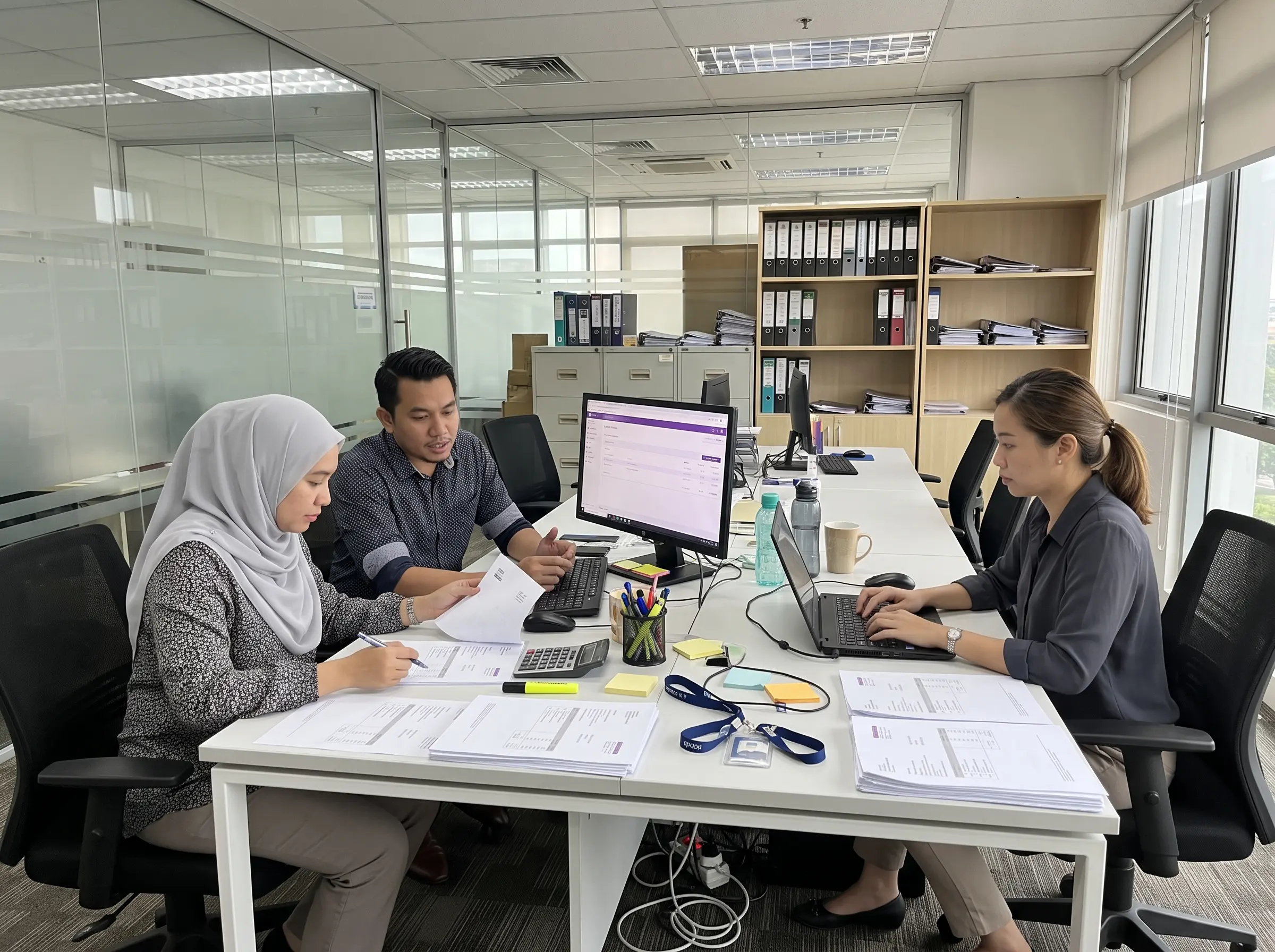
What Is MyInvois Integration with ERP?
MyInvois is the electronic invoicing system introduced by Lembaga Hasil Dalam Negeri Malaysia (LHDN). It provides a framework for submitting structured electronic invoice information and validating documents according to the applicable requirements.
MyInvois integration with ERP allows a business management system to communicate with the government platform through an Application Programming Interface (API). This connection can reduce the need to enter the same invoice information separately into an ERP and the MyInvois Portal.
The MyInvois API supports structured documents using supported JSON or XML formats. The integration software is responsible for preparing the required information, authenticating the submission and processing the response returned by the MyInvois system.
For SMEs already using software for customer accounts, sales quotations and invoices, the integration can provide a more connected administrative process. However, successful integration still depends on accurate records, correct configuration and proper handling of validation results.
7 Essential Steps in MyInvois Integration with ERP
1. Configure Company Information and API Access
Before MyInvois integration with ERP can be used, the business must prepare the necessary company and system information. This may include the registered business name, Tax Identification Number (TIN), relevant registration information and authorised API credentials.
BizCore’s company information settings include fields for LHDN Client ID, Client Secret and e-Invoice environment configuration. The system supports a Sandbox environment for testing and a Production environment for official submissions.
Businesses should verify their settings before submitting live documents. API credentials must be managed securely and should not be included in public documents, screenshots or ordinary email correspondence.
2. Verify Customer and Invoice Information
Accurate customer information is an important part of electronic invoicing. Before preparing a submission, the business should review the buyer’s registered information, relevant TIN and registration details, billing information and any other mandatory fields for the transaction.
The invoice itself should contain accurate item descriptions, quantities, prices, tax information where applicable and the correct document date. Incomplete or inconsistent data can lead to validation problems.
For MyInvois integration with ERP, maintaining reliable customer master records can reduce repeated data corrections across sales and finance departments. Businesses should also consider relevant TIN and business registration number validation requirements published by HASiL.
3. Create the Original Sales Invoice
The invoicing process normally begins with a sales transaction in the company’s business system. A finance executive creates an invoice using the customer account, products or services supplied, agreed prices and applicable billing terms.
For example, a Malaysian service company may issue an invoice for RM2,500 covering a completed maintenance service. The finance team records the customer’s details, service description and invoice amount in its ERP before proceeding with any required e-Invoice submission.
When using MyInvois integration with ERP, creating the original invoice does not automatically mean that LHDN has validated it. Invoice creation and government validation are separate stages of the workflow.
4. Convert the Invoice into an e-Invoice
After reviewing the sales invoice, the business prepares the corresponding electronic document for submission through its configured workflow. The integration must translate the required invoice information into the structure supported by MyInvois.
In BizCore, users can open an invoice under the Sales module, select the conversion option and create an e-Invoice draft. The converted document can then be reviewed through the e-Invoices section before manual submission, where that workflow is enabled.
Depending on the company’s configuration, BizCore can also support automatic submission after conversion. Businesses should confirm how the chosen setting works before using it for live transactions.

5. Submit the e-Invoice to LHDN MyInvois
The next stage in MyInvois integration with ERP is electronic submission. The ERP or its integration component sends the structured invoice data to the MyInvois API using an authenticated connection.
MyInvois performs initial checks when the document is submitted. If the submission passes these checks, the API can return a submission reference and document identifiers for further processing. Documents with structural or other submission errors may be rejected at this stage.
Important: Submitted Does Not Mean Valid
MyInvois may initially accept an invoice for processing while further validation is still pending. Finance teams should confirm the final validation result rather than treating a successful submission response as proof that the e-Invoice is already Valid.
This distinction matters when employees are reviewing submission records. An invoice may be successfully transmitted to the government system but still require additional validation or correction before its final status is established.
6. Monitor Validation Status and Results
Status monitoring is another key reason businesses consider MyInvois integration with ERP. Instead of relying only on an employee’s manual confirmation, an integrated system can help finance teams review submission and validation information in their business workflow.
The MyInvois API identifies statuses including Submitted, Valid, Invalid and Cancelled. The final result determines whether the invoice has passed the relevant validation process or whether further action may be required.
BizCore’s documentation describes status tracking in the e-Invoices section under Sales. It specifically explains Valid and Invalid results and indicates that users can review rejection information when a document has not passed validation.
7. Correct Errors and Maintain Invoice Records
An Invalid result means the document did not pass the relevant validation checks. Possible problems may involve buyer information, required fields, invoice details or other applicable validation requirements.
The finance team should examine the error information, correct the underlying records and follow the appropriate resubmission procedure. For documents that have already been validated, changes should follow the applicable cancellation, rejection or adjustment-document rules rather than treating the original document as an ordinary editable draft.
A well-managed MyInvois integration with ERP workflow also requires proper document records. Businesses should retain relevant transaction references, invoice information and supporting records in accordance with their applicable requirements and internal procedures.

Understanding MyInvois e-Invoice Statuses
Understanding validation statuses helps businesses avoid confusing a submitted invoice with a fully validated document. The table below explains the main statuses defined in the MyInvois system.
| Status | Meaning | Recommended Action |
|---|---|---|
| Submitted | Passed initial submission checks; further validation pending | Monitor for the final result |
| Valid | Document successfully validated | Maintain records and continue the relevant workflow |
| Invalid | Document did not pass validation | Review errors and follow correction procedures |
| Cancelled | Document cancelled through the applicable process | Retain cancellation records and review next steps |
These are MyInvois system statuses. The exact labels, screens and actions available to end users may differ according to the ERP provider and its implementation.
For detailed technical information, refer to the official MyInvois Submit Documents API documentation and the MyInvois SDK FAQ.
MyInvois Portal vs ERP API Integration
The government’s MyInvois Portal provides a way for businesses to manage e-Invoice activities without purchasing an ERP system solely for electronic invoicing. This can be a practical option for companies with relatively simple requirements.
MyInvois integration with ERP may be more suitable for businesses that already manage frequent sales transactions, customer accounts and financial records through connected software. Integration can reduce repeated entry between systems and provide a more structured way to monitor invoice processing.
However, integration does not remove the business’s responsibility for maintaining accurate data or following the applicable e-Invoice requirements. Businesses should evaluate whether the added convenience justifies the subscription and implementation costs.
How BizCore Supports MyInvois Integration with ERP
BizCore is a cloud ERP platform developed for Malaysian business operations. It provides modules for sales, purchasing, inventory and accounting, alongside e-Invoice functionality for businesses using the LHDN MyInvois framework.
According to BizCore’s documentation, users can prepare sales invoices, convert eligible invoices into e-Invoice drafts and manage submissions under the Sales module. The platform also provides e-Invoice settings for selecting automatic or manual submission.
Through MyInvois integration with ERP, BizCore users can review submitted e-Invoice records and check validation results. When an invoice is marked Invalid, the documented workflow allows users to examine the rejection information and take corrective action.
Before implementing the connection, businesses should confirm required company information, API setup, available functionality, subscription terms and any additional support or configuration requirements.
Explore BizCore e-Invoice solutions, read the invoice-to-e-Invoice conversion guide, or review the BizCore ERP subscription plans.
Connect Your Invoicing Workflow with BizCore
Discover how BizCore supports Malaysian SMEs with sales invoicing, MyInvois submission and electronic invoice status management.
Final Thoughts
MyInvois integration with ERP helps businesses connect their existing invoicing workflow with electronic document submission and validation processes. Understanding each stage can reduce confusion when invoices are still pending validation or require corrective action.
For Malaysian SMEs, the key priorities are accurate customer information, correctly prepared invoices, secure integration, status monitoring and reliable records. Choosing an ERP platform that supports these activities can help finance teams maintain more organised and consistent invoicing procedures.
Information reviewed in October 2026 for the November publishing schedule. e-Invoice requirements and technical specifications may change. Refer to HASiL for the latest official guidance.